
5 Real Ways to Manage Docker Containers Without Living in the Command Line
Table of Contents
- 1. Introduction
- 2. Docker Desktop: The Dashboard Most People Already Have
- 3. Portainer: The Serious Web UI for Docker, Swarm, and Kubernetes
- 4. Dockge: Built Specifically for Docker Compose Stacks
- 5. The Docker Extension for VS Code: Managing Containers Without Leaving Your Editor
- 6. Lazydocker: A Visual Dashboard That Still Lives in Your Terminal
- 7. So Which One Should You Actually Use?
- 8. Why Knowing the CLI Still Matters, Even If You Don't Use It Daily
- 9. Building This Skill Properly at Innovative Academy
- 10. FAQs
- 11. Final Thoughts
1. Introduction
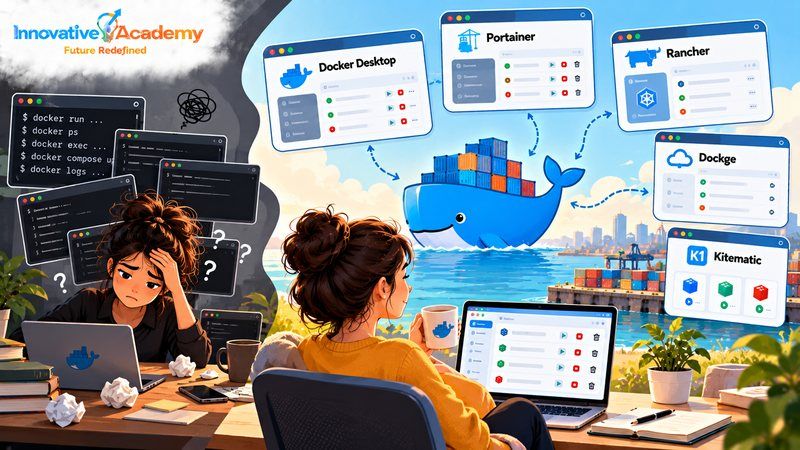
docker ps, docker logs, and docker compose up -d: typing the same handful of Docker commands repeatedly is a common experience for anyone learning containers, but it's not actually a requirement once you know what you're doing.
A genuinely useful set of tools has grown up specifically to let you create, inspect, start, stop, and clean up containers through a visual interface instead. The honest reason to learn them isn't laziness; it's that a dashboard surfaces things far faster than piecing the same picture together from several separate commands: which container is eating all your disk space, which stack is actually running, and what a container's logs looked like five minutes ago.
2. Docker Desktop: The Dashboard Most People Already Have
If you installed Docker on a Mac or Windows machine, you almost certainly already have this one. Docker Desktop's built-in dashboard lets you see and manage your containers, images, and the applications built from them directly, without a terminal window open at all, and it installs with one click on Mac, Windows, and Linux alike.
The licensing is worth knowing precisely rather than assuming: Docker Desktop is free for individual use and for any commercial use at a company with fewer than 250 employees and under $10 million in annual revenue; both conditions have to be true at once.
Past that threshold, it moves to a paid subscription (annual pricing):
- Pro: $11 per user per month
- Team: $16 per user per month
- Business: $24 per user per month
The higher tiers add things like centralized management, single sign-on, and audit logging that a solo developer never needs but a platform team genuinely does. For most people learning Docker for the first time, the dashboard in the free Personal tier is already the easiest way to start managing containers without having to memorize flags.
3. Portainer: The Serious Web UI for Docker, Swarm, and Kubernetes
Portainer solves a different problem than Docker Desktop: it's a browser-based management UI you can point at any Docker host, Swarm cluster, or Kubernetes cluster, not just the one sitting on your laptop, which makes it the more common choice once you're managing containers on a remote server or across several machines.
The free Community Edition already provides extensive support for full container, image, network, and volume management; Docker Swarm; and Kubernetes management, including applications, pods, services, ingresses, and Helm charts.
The paid Business Edition layers on what a team, rather than an individual, actually needs:
- Fine-grained roles instead of just admin-or-user
- LDAP/Active Directory and OAuth/OIDC login instead of only local accounts
- Audit logs and SIEM streaming for compliance
- Per-team access controls, so multiple groups can share one Docker host without seeing each other's containers
If you're managing containers on a single personal server, the free edition is almost certainly all you'll ever need.
4. Dockge: Built Specifically for Docker Compose Stacks
Dockge takes a narrower, more opinionated approach than Portainer, and that narrowness is deliberate. It's a self-hosted, open-source web manager built by Louis Lam (the same developer behind the popular Uptime Kuma monitoring tool) specifically for docker-compose.yaml stacks, not for every possible Docker feature.
What it does, it does cleanly: create, edit, start, stop, restart, and delete compose stacks through an interactive editor; update their images; watch real-time progress and terminal output while a stack comes up or down; and even convert an existing docker run command straight into a compose file.
It can manage stacks across multiple Docker hosts from one interface, and because it works directly with the compose files sitting on your disk, you can always drop back to the plain docker compose command line on the same files without anything breaking.
Dockge's own documentation is upfront that it isn't trying to replace Portainer outright. If you need to manage individual containers or Docker networks outside of compose stacks, Portainer still covers more ground, but for anyone whose entire Docker setup is a handful of compose-based services, Dockge is a genuinely more pleasant day-to-day tool, and the two can run side by side on the same machine without conflict.
5. The Docker Extension for VS Code: Managing Containers Without Leaving Your Editor
For anyone who already lives inside an editor most of the day, Microsoft's official Docker extension for VS Code folds container management directly into that same window.
Its Docker explorer panel lists your containers, images, volumes, and networks in one tree view. From there you can:
- Start and stop containers and view live logs
- Jump straight into a running web app in the browser
- Build an image from a Dockerfile with a right-click
- Run a one-click system prune to clear out unused images without typing a single Docker command
- Generate a working Dockerfile and
.dockerignorefile for a project that doesn't have one yet - Debug code running inside a container directly from the editor
It won't replace a dedicated dashboard for managing a fleet of remote servers; its real strength is keeping you in flow while actively developing, rather than alt-tabbing out to a separate terminal every time you need to check whether your container actually rebuilt.
6. Lazydocker: A Visual Dashboard That Still Lives in Your Terminal
Lazydocker, built by developer Jesse Duffield, is a genuinely useful edge case worth including even though it technically still runs inside a terminal window. It's a terminal UI (TUI), not a traditional graphical app, but it replaces typing Docker commands with keyboard-driven navigation through a visual dashboard of containers, images, volumes, and compose projects.
You move around with arrow keys, see live-updating stats and logs in dedicated panes, and trigger actions like restarting a container or pruning unused images with a single keypress instead of recalling the right flag combination.
It's free, open source, and installs as a single lightweight binary with no separate server or web UI to run, which makes it a reasonable middle ground for anyone who's comfortable in a terminal already but tired of typing the same Docker subcommands by hand.
7. So Which One Should You Actually Use?
There's no single right answer here; the honest guidance is to match the tool to what you're actually managing.
- Developing locally on your own machine: Docker Desktop's built-in dashboard or the VS Code extension, since both are already available with zero extra setup.
- A remote server or small home lab, mostly Docker Compose stacks: Dockge, or Portainer's Community Edition if you also need plain container and network management outside of Compose.
- Teams managing Docker, Swarm, or Kubernetes across multiple hosts, with real access control and compliance needs: Portainer's Business Edition.
- Anyone who spends time in a terminal: Lazydocker is worth having installed regardless of which of the others you also use, since it's a fast way to check container health without switching away from a terminal session you already have open.
8. Why Knowing the CLI Still Matters, Even If You Don't Use It Daily
None of these tools are a substitute for actually understanding what Docker is doing underneath them, and that's not a nitpick; it's the practical reason every one of these GUIs still has a terminal or editor built into it somewhere.
Dockge's compose editor, Portainer's console access to a running container, the VS Code extension's integrated terminal, and Lazydocker's underlying keypress-to-command mapping: every one of them is a layer sitting on top of the same Docker Engine and the same compose file syntax a CLI user would be typing directly.
When something breaks in a way the dashboard can't explain, like a stuck volume mount, a network a container can't reach, or an image that won't build for a reason the GUI just reports as "failed," the CLI and the actual error output underneath it are still where the real answer lives. The tools in this article make day-to-day container management faster; they don't remove the need to actually understand containers.
9. Building This Skill Properly at Innovative Academy
Innovative Academy's DevOps Bootcamp in Bangalore teaches Docker and container orchestration hands-on, starting from the command line itself rather than skipping straight to a dashboard, specifically so that tools like the ones in this article become genuine productivity boosts afterward rather than a crutch covering a gap in understanding.
Six months of practical work across the DevOps pipeline, containers very much included, builds the kind of foundation where picking up any of these GUIs later takes an afternoon, not a course of its own.
Interested in DevOps? Explore the DevOps Bootcamp Training in Bangalore at Innovative Academy, or call 8447712333 for course details.
10. FAQs
1. Do I need to learn the Docker command line at all if I'm just going to use a GUI?
Yes, at least the fundamentals. Every one of these tools is ultimately a layer wrapped around the same Docker Engine and compose file format a CLI user works with directly, so when something breaks in a way the dashboard can't fully explain, understanding the underlying commands and error output is usually the fastest way back to a working state.
2. Is Docker Desktop actually free for my situation?
It's free for individual use, and free for commercial use specifically at companies with fewer than 250 employees and under $10 million in annual revenue; both conditions apply together. Outside of that, a paid Pro, Team, or Business subscription is required.
3. What's the real difference between Portainer and Dockge?
Portainer manages the full range of Docker features, individual containers, networks, volumes, Swarm, and Kubernetes, across one or many hosts. Dockge focuses specifically on Docker Compose stacks with a cleaner, more focused interface, and doesn't try to cover everything Portainer does. Many people run both side by side.
4. Can I use more than one of these tools at the same time?
Yes. Several of them, Dockge and Portainer especially, are explicitly designed to coexist on the same Docker host without conflicting, since they're all just talking to the same underlying Docker daemon.
5. Which of these is best for someone just starting to learn Docker?
Docker Desktop's built-in dashboard or the VS Code extension, since both require no extra setup beyond installing Docker itself and make it easy to see what a container or image actually is while you're still learning the vocabulary.
11. Final Thoughts
The real value in all five of these tools is the same: they turn information that would normally take two or three separate Docker commands to piece together, what's running, what it's doing, whether it's healthy, into something you can see at a glance.
That's a genuine productivity gain worth having, but it's a gain built on top of understanding containers in the first place, not a way to skip learning them. Pick the tool that matches what you're actually managing, keep the command line close by for when something needs real debugging, and the two will do a better job together than either one does alone.